

Getting started with Image to Video AI usually begins with a simple hope: “I’ll upload a photo and get a polished, cinematic clip.” What you actually get—especially in the early days—is a five‑second video that’s close to your idea, but not quite. That gap is where most beginners feel uncertainty, start second‑guessing prompts, and wonder if they’re doing it wrong.
You’re not. Tools like Image2Video can be genuinely useful, but they reward a gradual approach: small experiments, tighter expectations, and a repeatable workflow. Below is an experience-driven guide to using Image to Video AI realistically—so you end up with reliable output instead of a pile of “almost” videos.
What Image to Video AI Is (and What It Isn’t)
Before you touch prompts, it helps to reframe what’s happening. Image to Video AI isn’t a traditional editor that “cuts” footage—you’re not assembling clips. You’re asking a model to animate a still image based on your description.
What it’s good at
- Adding camera motion to a still (slow push-in, pan, tilt, gentle zoom).
- Creating a sense of energy for static assets (product photos, cover images, posters).
- Producing short, shareable snippets for social—classic Image to Video use.
Where beginners get surprised
- Fine details drift (hands, small text, jewelry, dense patterns).
- Faces can warp if motion is too aggressive or the image is complex.
- Your prompt is interpreted, not executed like a script—Photo to Video is closer to “direction” than “instructions.”
If you treat Image to Video AI like a “camera operator with opinions,” your results make more sense—and your iteration gets faster.
Using Image2Video: The Simple 4-Step Flow (and the Non-Obvious Choices)
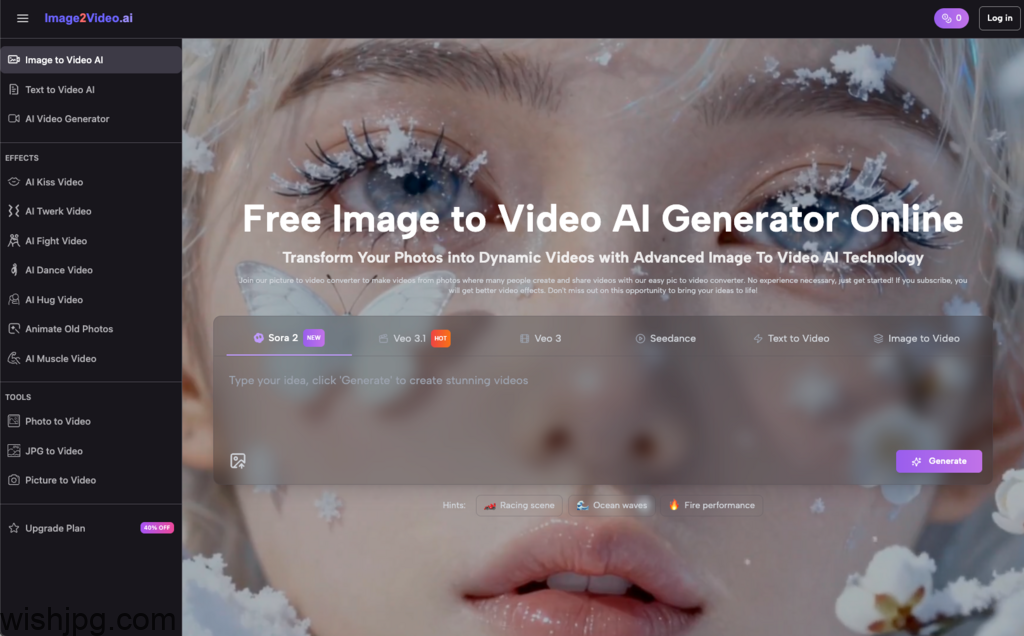
Image2Video’s workflow is straightforward: upload a picture (JPEG/PNG), add a text description, wait while it processes (often a few minutes), then download/share when it’s completed (MP4 output). The learning curve isn’t the steps—it’s the decisions inside each step.
- Pick the right “starter images”
For your first week with Image to Video AI, choose images that are easy to animate:
Good for learning:
- Product photos, landscapes, architecture, illustrations
- Centered subjects with clean edges
- Simple lighting and uncluttered backgrounds
Hard mode (save for later):
- Close-up faces, group photos
- Hands doing anything detailed
- Dense textures like leaves, grids, intricate fabric patterns
This isn’t about quality—it’s about predictability. Early wins teach you what to control.
- Prompt the camera first, style second
This is the fastest path to repeatable results: nail motion, then decorate.
Here’s a stable starting prompt:
- “Slow push-in, subtle movement, cinematic lighting, smooth motion, keep the subject stable.”
Then add just one purpose-specific detail:
- For products: “clean background, product-focused”
- For memories: “warm tone, gentle mood”
- For diagrams: “minimal motion, keep text readable”
- Treat processing time as iteration planning
While it’s generating, write the next two variations you’ll test. Image to Video gets productive when you stop waiting for perfection and start running small experiments on purpose.
- Review for “usable,” not “impressive”
Before you post or hand it off, do a quick sanity check:
- Any obvious warping (faces, logos, hands, text)?
- Is motion smooth or does it jitter/jump?
- Do the edges “melt” or stretch unnaturally?
If something’s off, the most effective fix is often less motion or a cleaner source image, not more prompt text.
A Beginner-Friendly Workflow That Improves Week by Week
If you’re trying to adopt Image to Video AI as a real tool (not a novelty), this staged approach keeps you sane.
Stage 1: Make it move reliably
Goal: stable motion with minimal weirdness.
- Use gentle push-ins and slow pans
- Keep one subject per frame
- Prefer simple scenes over complicated compositions
Stage 2: Make it look like your content
Goal: repeatability and brand consistency.
- Save 5–10 “house style” words (warm, clean, minimal, moody, etc.)
- Standardize camera language (e.g., always subtle zoom + slight parallax)
- Use similar image types to train your eye
Stage 3: Make it part of your publishing rhythm
Goal: output you can plan around.
- Turn one product image into 3–5 motion variants for ads
- Turn a photo set into short looping clips for intros/outros
- Add motion to educational visuals to increase attention without re-editing everything
At this stage, Photo to Video becomes a content multiplier—not a gamble.
AI-Assisted vs Traditional Production: What You’re Actually Saving
Image to Video AI doesn’t replace everything. It tends to save time in places where traditional production is slow or repetitive.
Here’s a grounded comparison:
| Task | Traditional approach | Image to Video AI approach | Trade-off |
| Add motion to a still | Keyframes in editing software | Generate camera motion from one image | More trial-and-error |
| Create multiple variants | Duplicate, re-edit, re-export | Run multiple prompt variations | Consistency needs a system |
| Short social loops | Shoot + edit | Generate a 5-second MP4 | Complex action is limited |
The key shift: Image to Video AI is best for turning existing static assets into motion-ready media—fast—when you don’t need perfect realism.
Practical Prompt Patterns (That Don’t Feel Like Spellcasting)
You don’t need clever wording. You need clarity.
Product photo
- “Slow pan, product centered, clean background, soft studio light, smooth motion, keep logo stable.”
Landscape
- “Gentle push-in, natural colors, cinematic light, subtle movement, smooth, avoid distortion.”
Family/memory photo
- “Warm tone, soft light, subtle zoom, calm mood, keep faces stable, smooth motion.”
Notice the theme: camera motion + mood + one or two constraints. That’s usually enough to steer Image to Video outputs without turning your prompt into a manifesto.
A Quick Pre-Generation Checklist for Beginners
If you do nothing else, do this. It cuts wasted attempts.
- Is the subject clear and well-lit?
- Are there tiny details I should avoid animating aggressively (text, hands, logos)?
- Am I changing only one variable this attempt?
- Is my motion subtle enough to start?
- What’s the use case—loop, intro, ad variant, mood clip?
What “Success” Looks Like with Image2Video (Early On)
The real milestone isn’t creating a jaw-dropping clip on day one. It’s getting to the point where Image to Video AI produces consistent, usable motion from the kinds of images you already have—without you rewriting prompts for an hour.
Once you accept that the early phase is mostly calibration—image choice, motion restraint, small iterations—tools like Image2Video become much easier to adopt. Not because they’re magic, but because your workflow stops fighting how photo to video actually behaves.
