
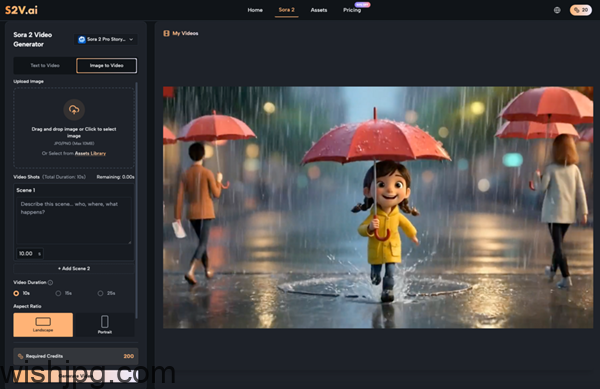
Getting started with Sora 2 AI (or any Sora 2 Video Generator) can feel oddly intimidating. Not because the interface is impossible—but because your expectations are doing backflips. You type a prompt, hit generate, and secretly hope for a finished, cinematic mini-film. What you often get instead is a mix: a few shots that look shockingly good, plus a few moments that make you mutter, “Close… but not quite.”
That gap is normal. Early adoption of AI video is less “breakthrough button” and more trial-and-error craft. This guest post is an experience-driven, beginner-friendly way to adopt S2V—a platform that provides access to multiple leading video models, including the Sora 2 series and Google’s Veo 3 series—so you can build a workflow that improves over time. No pitch, no promises of instant mastery. Just the stuff that actually helps.
Resetting Expectations: What Sora 2 AI Is (and Isn’t)
If you’re new, the biggest win is reframing what you’re trying to do. Sora 2 AI isn’t a full production team in a box. It’s closer to a shot generator—and you’re still the person responsible for creative direction, continuity, pacing, and the final edit.
Three expectation traps beginners fall into
- “One prompt = final video.” In practice, you’ll generate variations, keep the best parts, and iterate.
- “More detail means more control.” Overloaded prompts can create unpredictable outputs or style drift.
- “It’ll automatically match my brand.” Brand tone, product priorities, and messaging still need structure—usually outside the generation step.
Once you aim for “usable clips” rather than “perfect finished films,” using a Sora 2 Video Generator gets much less frustrating.
A Beginner Workflow That Actually Holds Up
Most people don’t need “prompt templates” first. They need a repeatable loop: define → generate → select → edit. Here’s a workflow that helps you improve without burning hours.
1.Write the shot intent before writing the prompt
Before you prompt Sora 2 AI Video Generator outputs, write a one-liner describing the shot’s job:
- What should the viewer understand in 3 seconds?
- Is this meant to feel realistic, stylized, or somewhere in between?
- What’s the one “must-not-fail” detail (product visibility, emotion, action)
Then translate that into generation instructions: subject, action, setting, camera language, lighting, pacing. Abstract adjectives (“cinematic,” “epic,” “insane realism”) rarely steer as well as concrete film language.
2.Break one idea into 3–6 short shot units
Beginners often try to generate a whole story in one go. A more reliable approach is building a mini shot list:
- Establishing shot (where are we?)
- Action/detail shots (what’s happening? what matters?)
- Payoff shot (what changes? what’s the emotion?)
This makes a Sora 2 Video Generator feel like a controllable tool instead of a one-shot gamble.
3.Iterate cheaply first, then “final” later
A simple cost-and-time saver: validate direction before you chase higher quality.
- Generate a few quick drafts to confirm composition, action logic, and style direction.
- Once it’s close, regenerate with settings/model choices aimed at final output.
The mindset shift: test first, polish second.
4.Treat editing as default, not as a failure
AI video generation is usually a source of footage—not a finished deliverable.
Plan for:
- Pacing control (shot length, rhythm, pauses)
- Visual consistency (color, contrast, cohesion)
- Text overlays, captions, VO, music (unless you intentionally rely on native audio)
If you assume post is part of the workflow, your “first draft” stops feeling like a disappointment.
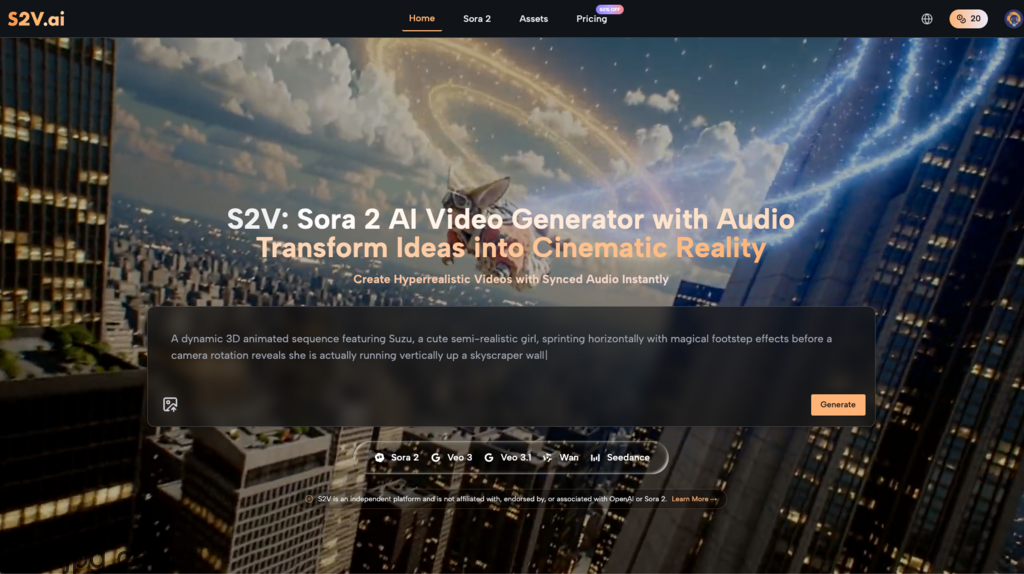
My First Real Lesson Using Sora 2 AI: Control Beats “Wow”
The first time I worked with Sora 2 AI, I did what most people do: I wrote a long, detailed prompt describing an entire sequence and expected a clean, coherent result. What I got was more realistic: a couple of shots that were genuinely impressive—and a few that were almost right, but not usable because the motion felt off or the emphasis landed on the wrong detail.
Things improved when I switched to “one prompt = one shot” thinking. I started:
- Keeping prompts focused on a single camera moment.
- Generating multiple variations and selecting the most physically plausible movement.
- Building sequences in the edit, not inside one generation.
That’s not a magical “trick.” It’s the practical way many beginners learn to use Sora 2 Video Generator tools: you’re not writing a screenplay—you’re issuing shot direction.
Native Audio: When It Saves You—and When It Complicates Things
S2V provides access to Google’s Veo 3 and Veo 3.1, which (per the provided information) can generate video with integrated audio such as sound effects and ambient soundscapes. For beginners, this can remove a big post-production burden.
Great use cases for native audio
- Atmosphere-first clips (street scenes, nature moments, moody b-roll)
- Fast demos to communicate a direction to teammates or clients
- Content where perfect spoken dialogue isn’t the core requirement
When you’ll still want traditional audio post
- Brand voiceover that must hit exact wording and tone
- Tight beat-driven edits (where you need precise timing)
- Consistent loudness and sonic branding across a series
A practical compromise: use native audio for early proofs and vibe checks, then standardize audio in post for final delivery.
AI-Assisted vs Traditional Production: Compare the Steps You Save, Not the “Quality War”
A healthier comparison isn’t “AI vs camera.” It’s: what steps does AI remove, and what steps does it add?
Where AI video often helps early
- Making ideas visible quickly (concept proof without a shoot)
- Creating extra b-roll and transitions for edits
- Testing styles and camera language before committing to production
What AI often adds
- Prompt iteration and shot planning (pre-production moves earlier)
- Version review and selection (you become your own footage curator)
- Cleanup in editing (consistency, pacing, audio standards)
That’s why Sora 2 AI adoption feels smoother when you treat it as a production assist rather than a full replacement.
Three Workflow Guardrails That Prevent Burnout
When beginners quit after a week or two, it’s often not because the output is “bad.” It’s because the process is chaotic. These three guardrails keep things sane.
Guardrail 1: Change one variable at a time
If you change scene, subject, style, and camera all at once, you’ll never know what caused improvement—or breakage.
Guardrail 2: Build a personal shot library
Save your generations by category:
- Establishing shots
- Product close-ups
- Motion experiments
- “Looks cool but unusable” failures (seriously—these teach you patterns)
Your second project with a Sora 2 Video Generator will move faster than your first if you can reuse what you learned.
Guardrail 3: Write down your “usable” criteria
Example checklist:
- Subject is clear and stable
- Motion feels plausible enough for the context
- Shot length is editable (not too short to cut, not too long to drag)
- No obvious distracting artifacts
This stops you from chasing occasional “wow frames” and helps you ship consistent work.
Closing Thought: Treat Sora 2 AI Like a Shot Partner, and You’ll Improve Faster
The most realistic path to using Sora 2 Video Generator effectively is gradual: define smaller shots, iterate intentionally, and edit with consistency in mind. S2V’s model access—spanning the Sora 2 AI Video Generator series and the Veo 3 series with native audio—supports that learning curve because you can match the tool to the task instead of forcing every idea through one approach.
If you keep your goals modest at first (usable clips, not instant masterpieces), your workflow will get cleaner with each project—and the results will start to look less like “AI experiments” and more like deliberate creative work.
